How to Get a White Background Product Photo With AI
You can ask AI for a white background product photo in two ways: describe the product, or upload a photo of it. We tried both with one candle. Only the photo kept our candle.
Updated October 7, 2026
The test
We used the White background preset three times, with the same candle each time. We made one image each time and did not pick the best of several tries.
- Text to image: no photo, only a description: an amber glass soy candle with a kraft paper label that reads "AMBER & OAK".
- Image to image from a studio photo of the candle on a beige background.
- Image to image from a photo of the same candle on a cluttered kitchen counter.
Text to image makes a different candle
The result is a clean product photo on white, and it matches the description: an amber jar with a kraft label that reads AMBER & OAK. But it is not our candle. The jar has a different shape, the label has a different layout, and the "SOY CANDLE" line is gone.
A description cannot hold every detail of a real product. Use text to image for ideas and mockups, not for a product you sell.
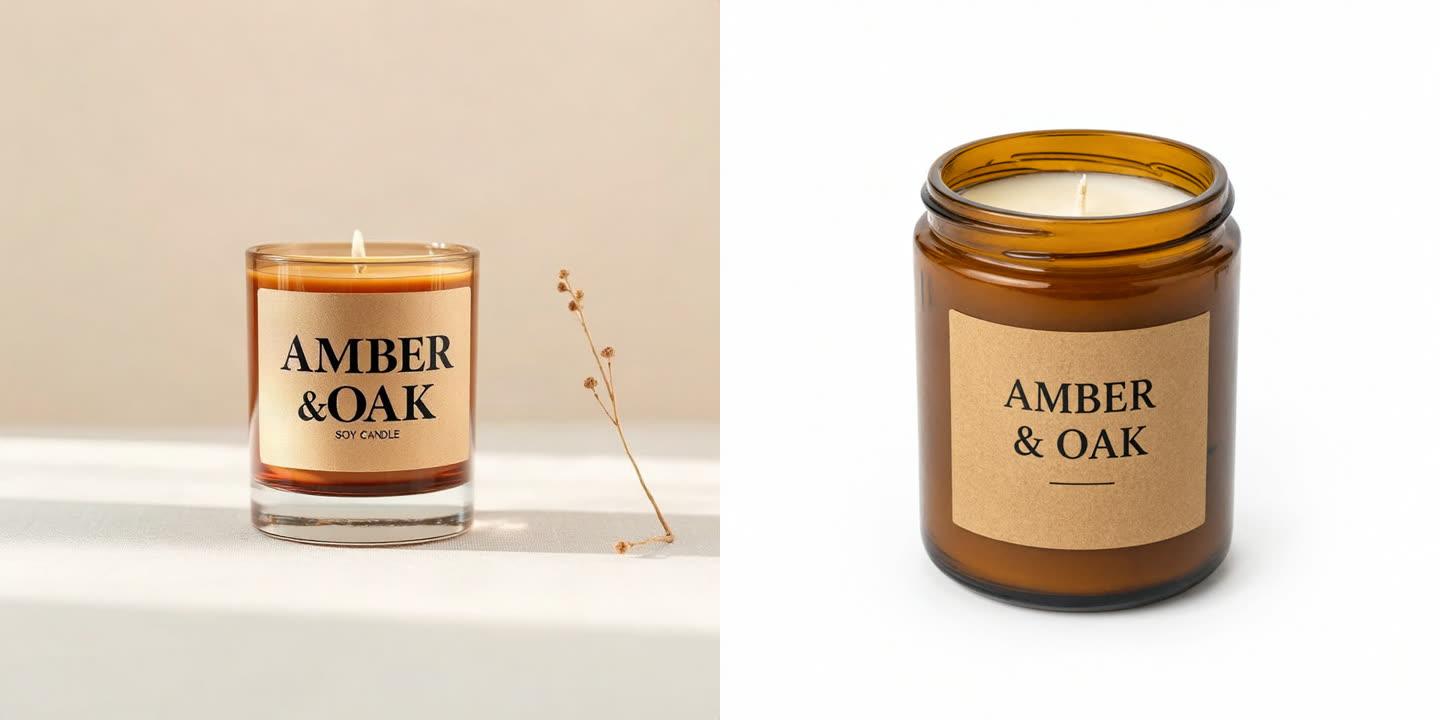
From a description
Left: our candle. Right: the candle AI made from the description.
Image to image keeps the product
From the studio photo, the candle came back the same: the jar, the wax, the label and its text. The dried flower and the beige wall are gone, and a soft shadow stays under the jar.
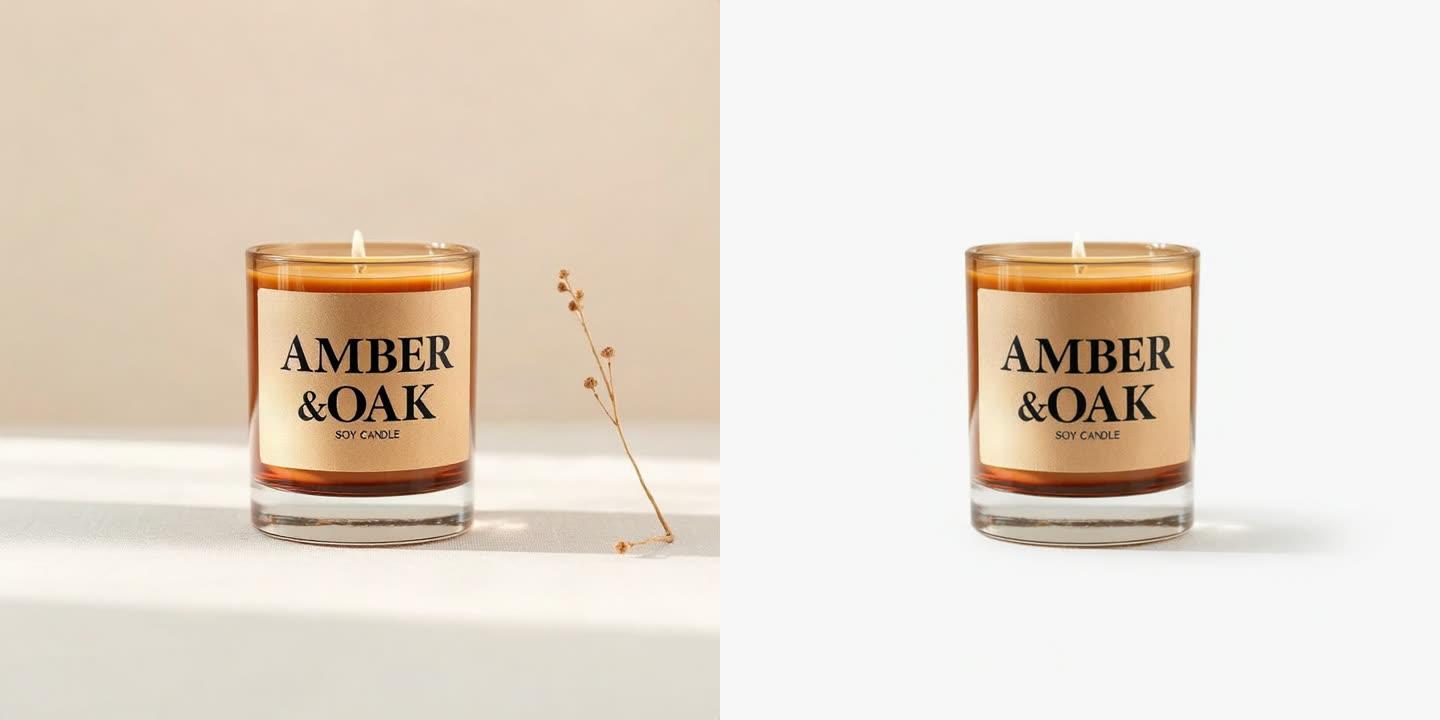
From a studio photo
Left: the photo we uploaded. Right: the result.
It also works from a messy photo
The cluttered counter photo gave almost the same result as the studio photo. The dishes, the kettle, the fruit and the phone are gone, and the harsh kitchen light is now even. The candle and its label did not change.
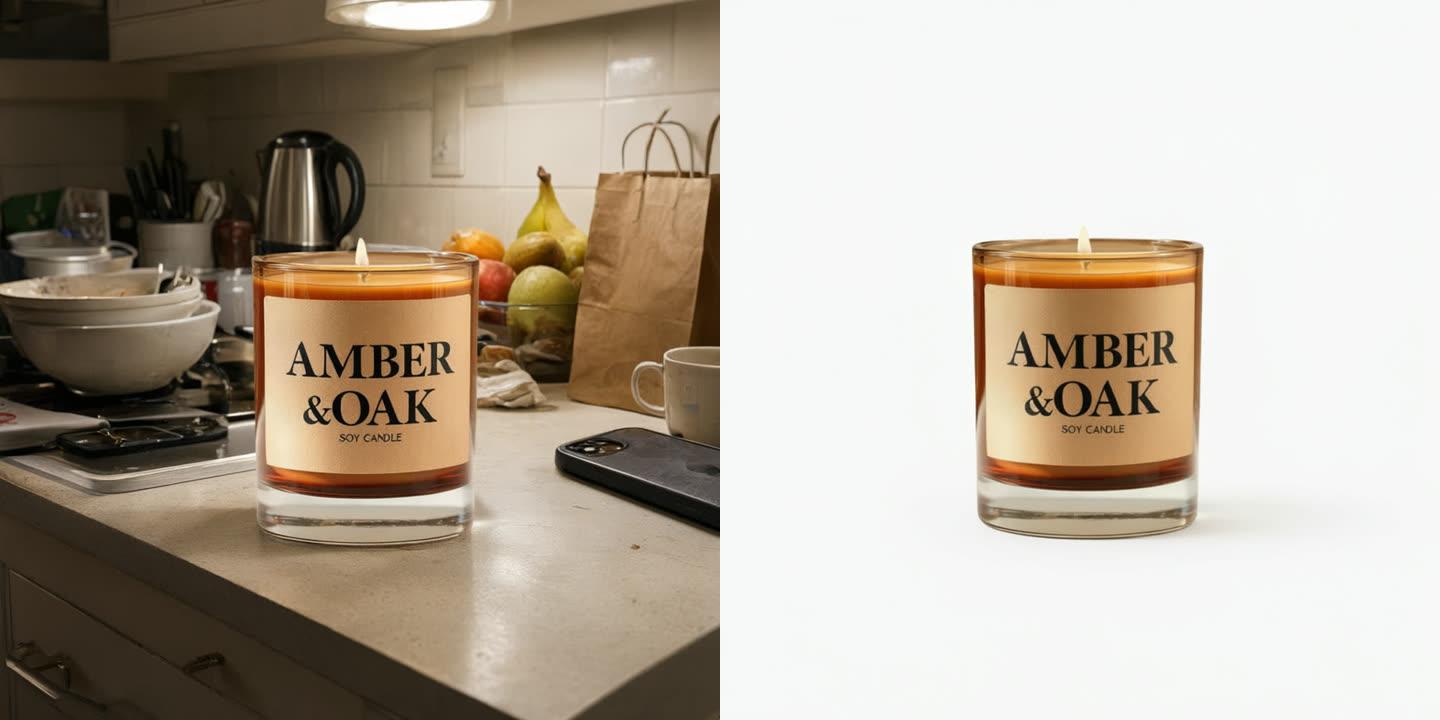
From a cluttered photo
Left: the photo we uploaded. Right: the result.
How to do it
In ClipSKU, it takes five steps:
- 1Select Generate image on the Dashboard. Image to image is selected by default.
- 2Upload a photo where the whole product is visible and sharp.
- 3Select the White background preset. You do not need to write anything else.
- 4Choose 1:1 for listings, then generate the image.
- 5Compare the result with your product. Then download it, or select Use for video to turn it into a video.
Check before you publish
- The shape and the proportions match your product.
- Text and logos match your product, letter by letter.
- Nothing was added to the product, such as a new label or sticker.
- The shadow sits under the product and looks natural.
Keep reading

What Makes a Good Photo for an AI Product Video
We took one candle photo, made four worse versions of it, and turned all five into videos with the same settings. The candle held up every time. Everything else in the photo carried over into the video.

How to Turn a Product Photo Into a Video
You need one product photo and a few selling points. Here are the five steps, a real result, and two real failures from our own tests, so you know what to check before you publish.