How to Turn a Product Photo Into a Video
You need one product photo and a few selling points. Here are the five steps, a real result, and two real failures from our own tests, so you know what to check before you publish.
Updated October 7, 2026
What you need
One product photo: JPG, PNG or WebP, up to 10 MB. A clean background and soft, even light give the best results.
One or two selling points, for example the material or what the product is for. With ClipSKU, you don't need to write a prompt.
Five steps from photo to video
- 1Upload the photo.
- 2Describe one or two selling points, or start from a preset such as Slow push-in.
- 3Choose the format: 9:16 for Reels and TikTok, 1:1 for listings, 16:9 for your website. Then choose 5 or 10 seconds.
- 4Generate the video. It is usually ready in 1 to 3 minutes. If it fails, your credits come back automatically.
- 5Check the result from start to end, then download the MP4.
Ceramic mug1:1 · 10 sec · made with ClipSKU
What can go wrong
An AI video model does not copy your product. It draws the product again in every frame. Most of the time the product stays the same, but not always.
These two clips come from our own test of the video model behind ClipSKU. The test photo was made with an AI image model. The mug in it is plain and has no text. Each strip shows the start, the middle and the end of the clip.
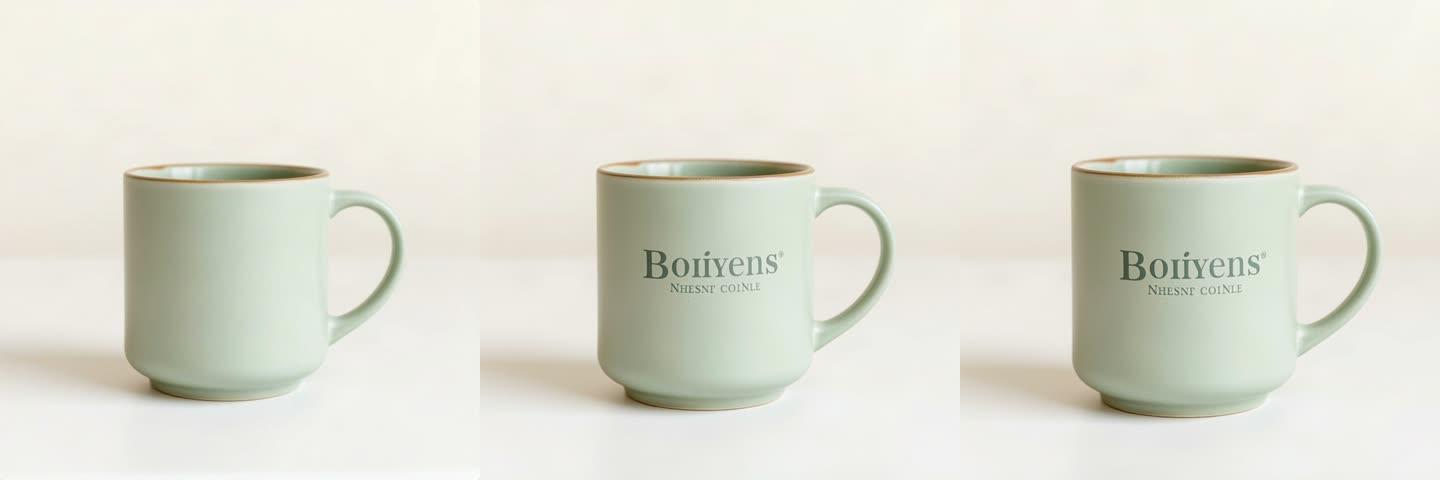
A plain mug gets a made-up logo
Slow push-in. The mug has no text at the start; by the middle, a logo appears.
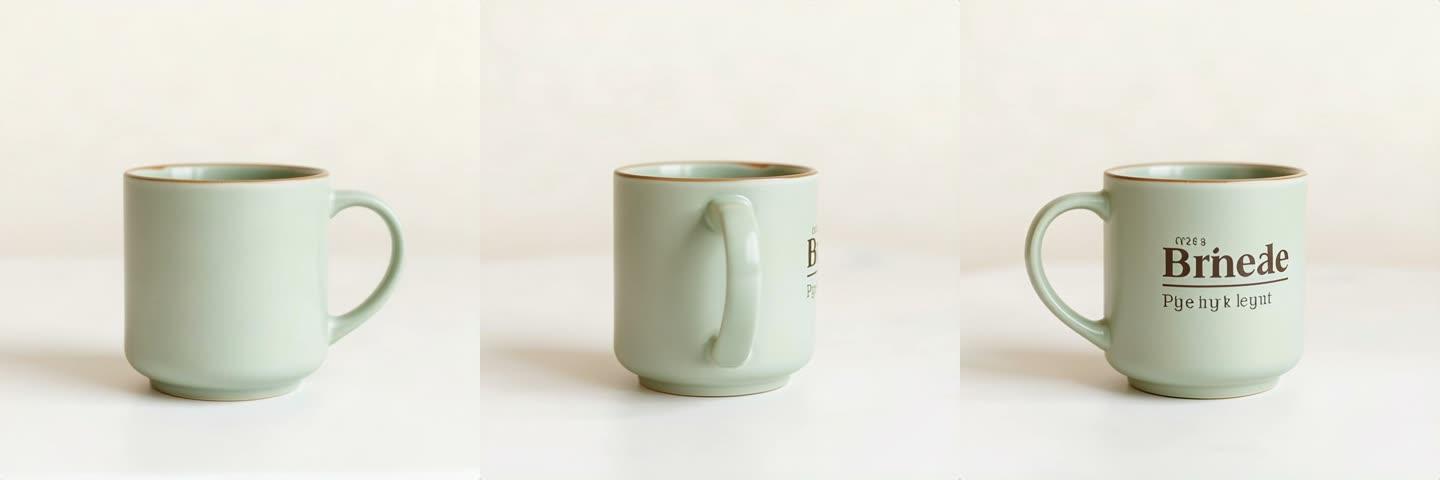
The mug turns around and gets a made-up logo
Close-up. The camera should move; the mug turns instead, and a logo appears on the side that was blank.
Why it happened
In that test, the prompt told the model to keep the product's text and logos. On a product with no text, that instruction made the model add some.
We changed the prompt after the test. A video can still change your product, so check every video before you publish it.
How to get a video that looks like your product
- Use a photo with one product, a plain background and no hands or props.
- Start with a preset that only moves the camera, such as Slow push-in. Presets that change the scene or the light change more of the picture.
- Describe the selling point, not the look of the product. The photo already shows the look.
- If the shape, color, logo or label text changes, generate the video again. If it still changes, try a photo with a simpler background.
Keep reading

What Makes a Good Photo for an AI Product Video
We took one candle photo, made four worse versions of it, and turned all five into videos with the same settings. The candle held up every time. Everything else in the photo carried over into the video.

Image to Video Prompts for Products, by Category
The prompts we used for real product videos of jewelry, watches, shoes, skincare, coffee and candles, each with the video it made. Plus a test that shows why you should not mention your label in the prompt.